
Project budget rule
When you are in the main menu PROJECTS, you will see project budgets at the bottom of the lines. With a project budget Set an expected amount or number for each project. During the project, you'll see at a glance how much you've already spent and how much room is left. This way, you maintain control over costs and hours.
You can per project multiple budget lines to add, for example, one line for the total project and a separate line for a specific product group or service.
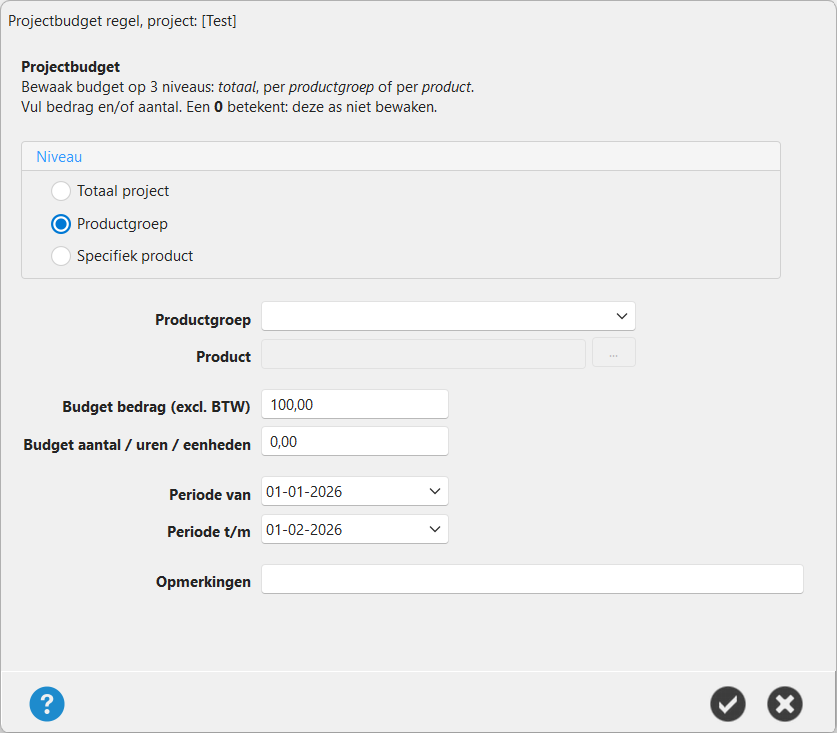
Example of a PROJECT BUDGET
Where does the system get the consumption data from?
The consumption you see in the project budget overview is fully calculated based on your invoices and invoice lines. So nothing is kept separately; the system simply looks at all invoices linked to this project.
Concretely, this means:
- An invoice line counts towards a budget line if the scope matches (correct product group, correct product, within the correct period).
- Amounts are always excluding VAT added up.
- Concept invoices do not count. — only invoices actually issued will be booked as consumption.
- If you adjust an invoice, add a line item, or delete an invoice, the consumption will adjust automatically.
Important: Do you want an invoice to count towards the project budget? If so, make sure to select the correct [option] when creating the invoice. project selects the project. Without a project link, we do not see the invoice as consumption.
Step 1 — Choose the level
At the top of the screen, you determine the level at which the budget applies:
| Level | What are you guarding? | When do you use this? |
|---|---|---|
| Total project | The entire project together | If you just want to monitor one general budget |
| Product group | All products/services within a group | Materials only or Hours only" |
| Specific product | One specific product or service | Specifically "sandpaper" or "travel hours" |
Tip: You can combine them. A budget for "Total Project" and a separate line for "Product Group: Materials" can coexist perfectly fine. Both count their own consumption independently.
Step 2 — Fill in the scope
Depending on the selected level, the fields below will become active:
- Product group — appears at level Product group and Specific product. Choose one of your existing product groups from the list.
- Product — only appears at level Specific product. Click the button
…to search for a product.
At level Total project You don't need to fill anything in here.
Step 3 — Fill in the budget
You can budget for amount, or number, or both.
- Budget amount (excl. VAT) — the maximum amount you want to spend or invoice for this scope. Always excluding VAT.
- Budget number / hours / units — the maximum number of pieces, hours, or other units.
0 means Do not guard this. Do you want to send only by amount? Enter an amount and leave the quantity at 0. The other way around.Examples
- Example 1 — Monitor Amount
- Amount =
5.000,00, Number =0→ You will receive a warning as soon as the invoiced value approaches €5,000. - Example 2 — Monitoring Hours
- Amount =
0, Number =40You will receive a warning when you are approaching 40 booked hours.
Step 4 - Determine the period (optional)
With Period of and Period to you limit the budget to a certain timeframe.
- Leave both blank → the budget applies to the entire project duration.
- Fill in both → strictly applies between these two dates.
Step 5 — Comments
Free text field for comments.
Warning for overlapping periods
If you save a new budget rule with the same scope and an overlapping period, you will receive a warning to prevent double counting.
Frequently Asked Questions
Can I have multiple budget rules per project?
Yes. For example, one for the total project and separate lines for each product group.
Does VAT count towards the budget?
No. Both the budget amount and the consumption are calculated. excluding VAT.
My bill isn't in the consumption. How can that be?
Check that the invoice is no longer a draft, is linked to the project, and falls within the correct period and product group.