Creating invoices in PERIFACT: Simple and efficient!
Start with a new invoice:
There are three convenient ways to create a new invoice in PERIFACT:
1. From a contact:
- Open the contact for whom you want to create an invoice.
- Fill in all the required information.
- At the bottom left of the screen, click "Invoice" or "Quote.".
2. From the main menu Invoices:
- Go to the main menu "Invoices.".
- Find the desired contact.
- From the main menu, click "New Invoice.".
3. Double-click on a contact:
- Go to the main menu "Invoices.".
- Double-click the contact's name in the main screen.
Draft invoices and quotations:
PERIFACT offers the possibility of using draft invoices and quotations work. This is useful for preparing an invoice or quotation and finalizing it later. Of course, you are not required to create a draft first; you can create a final invoice immediately.
TAB - INVOICE RULES
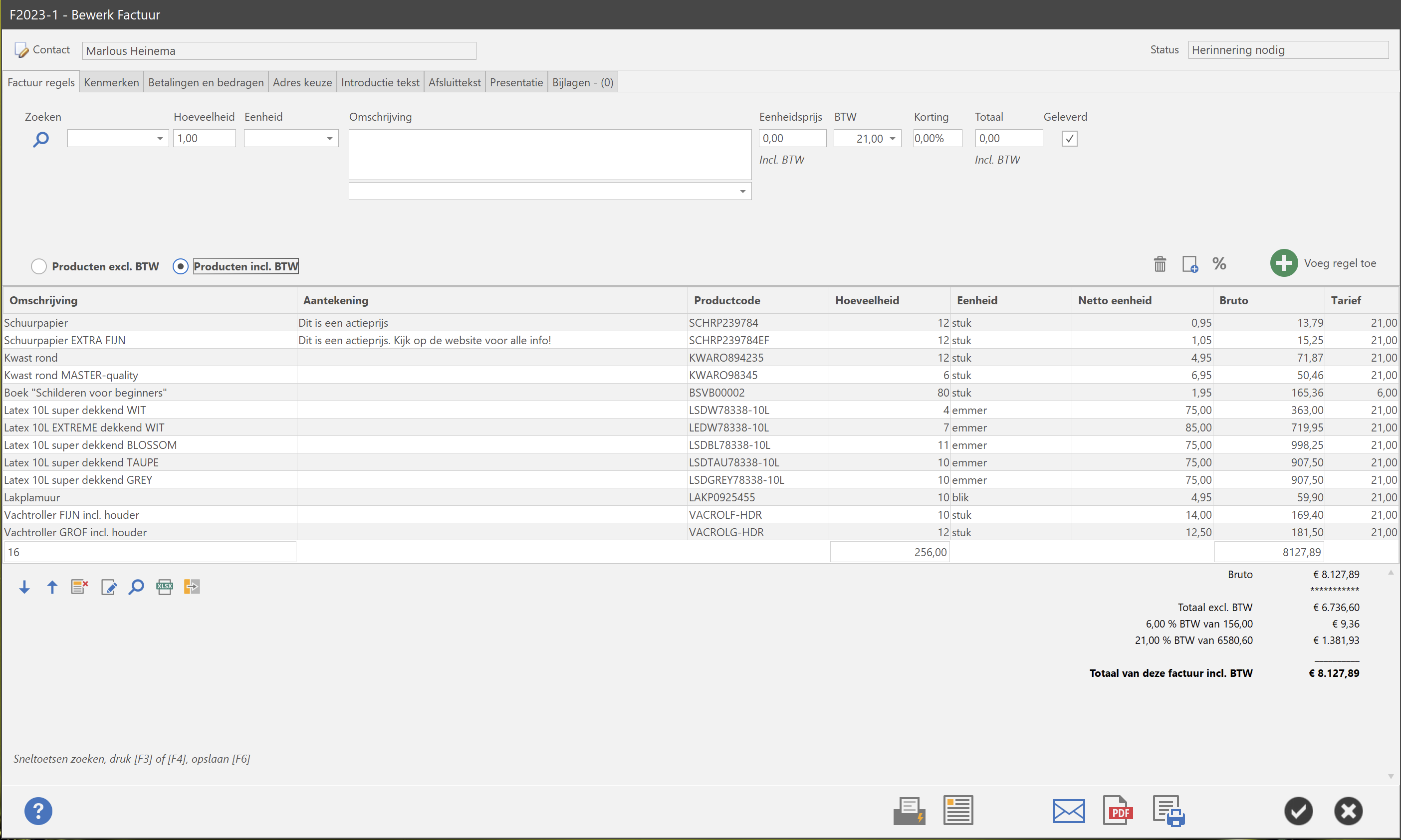
You now have the option to manually enter everything like description, quantity, delivery date etc. Or if you want to add something to your invoice that recurs regularly press the [Search in products] button. Then choose an item from the presented product list. Once you have entered everything correctly press the button in the middle right of the screen [Add line]. Repeat this for all invoice lines you wish to add.
The notes field is useful for things that recur regularly. Think of codes or standard phrases. These can be further managed at main menu SETTINGS - EXTRA.
When you're done, press the [Save and Print] button at the bottom, or if you want to print it later just press [Save]. And you're done!
Optionally, another line discount can be added via the button or an additional line of text.
The arrows below the grid allow you to adjust the sorting of the selected line. And last-but-not-least, there is an option to pre-storage 1 or more invoice lines, they are then grouped and appear on the invoice as "Summary of Delivered.".
NOTE: All text on the invoice can be modified via menu SETTINGS - BUSINESS TEXTS or menu SETTINGS - LABEL TEXTS

TAB - CHARACTERISTICS
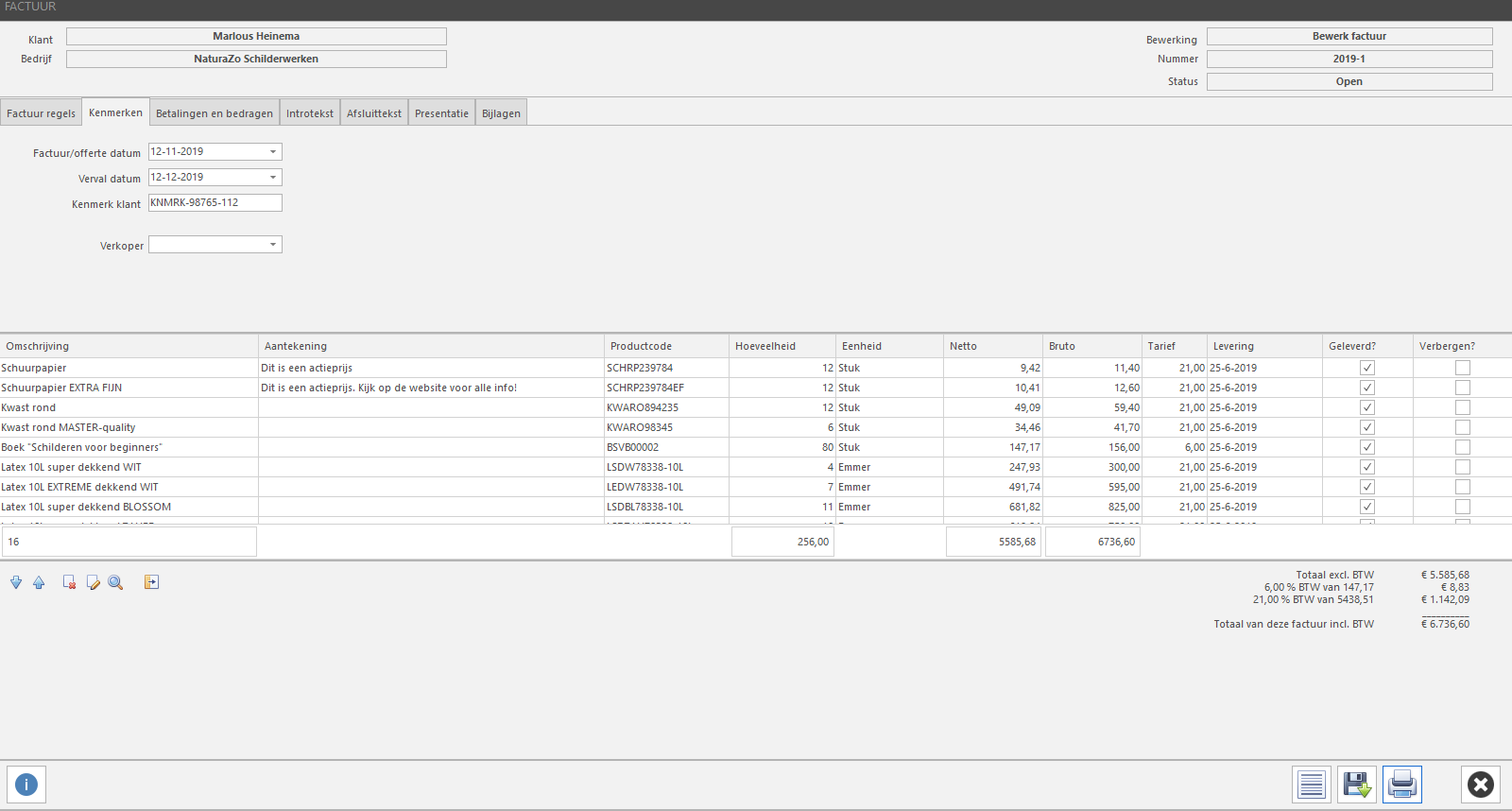
The place to edit the invoice/quote date, due date and any customer attribute.
If you work with multiple vendors, you can select from the list of vendors here. If a vendor is selected here then the text "You were helped by" will appear on the invoice. Leave blank if not applicable.
If an invoice is not paid then an additional reminder can be shown on the invoice. There are 3 possible reminders: reminder, reminder, or formal notice.
TABBLAD - PAYMENT and BENEFITS.
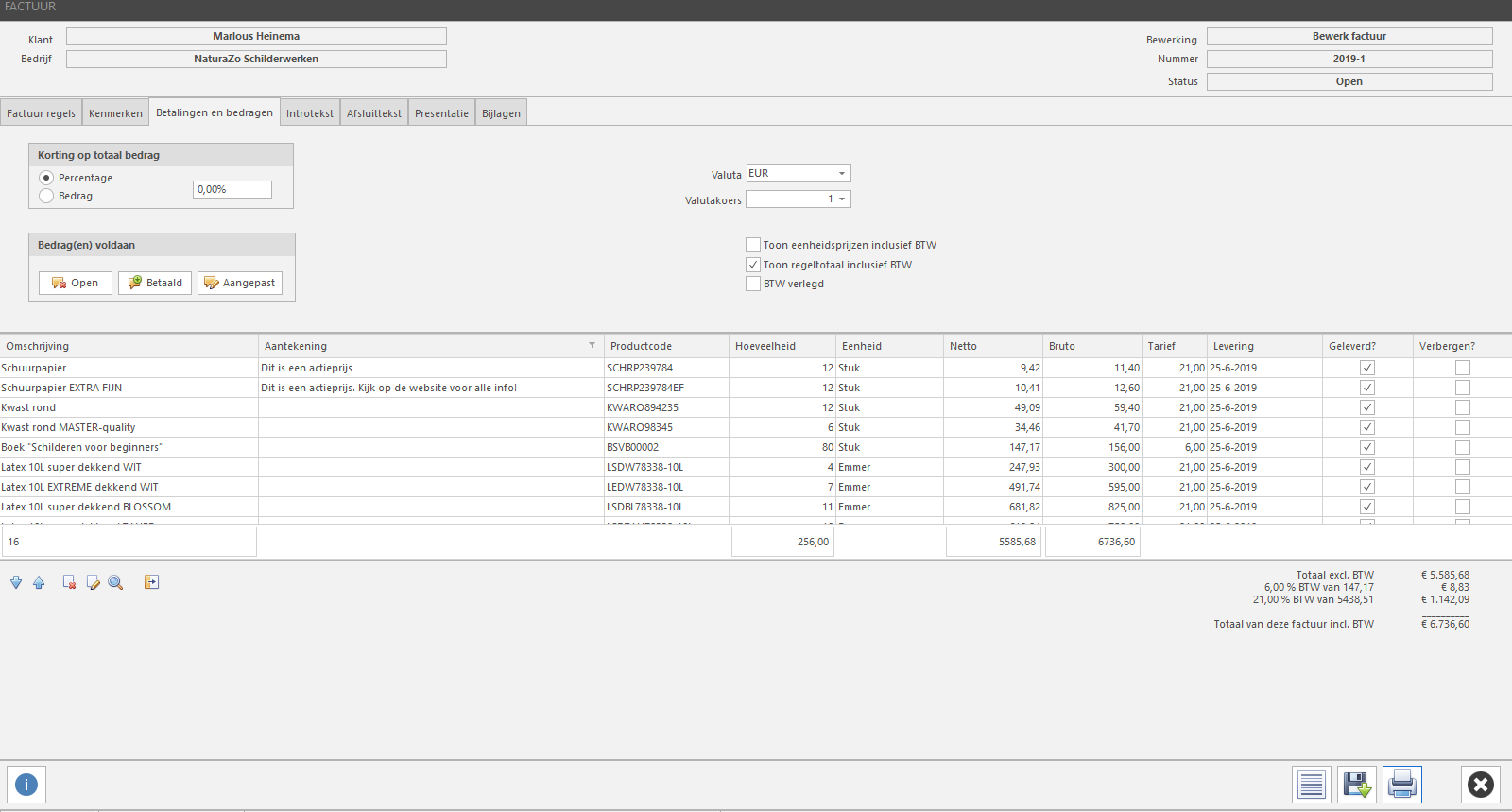
In addition to inserting individual discount rules via the [Invoice Rules] tab, there is also the option to discount the entire invoice. This may be an amount or a percentage.
If a currency other than the EURO is needed, you make the selection here. For proper conversion of the rate you can make another adjustment here. A 'permanent' adjustment can be made in the menu SETTINGS - EXTRA, tab [Currency].
Depending on how your CONTACT is created, company or private person, here the option 'Mention rules including VAT' will be on or off. Are you going to reverse the VAT? Then click the option ON.
If the invoice is already (partially) paid then 1 or more payment moments can be added. There are 3 ways to do that quickly or customized. Paid' the open amount is reduced to 0. Open' the invoice gets the status open.
When customized, you will see the screen below. And as you can see, you can also register payments from the main menu. You can choose up to 5 payment moments. Of course you can indicate which way the payment was made ( e.g. BANK or KAS) and on which date.

TAB - INTRO TEXT
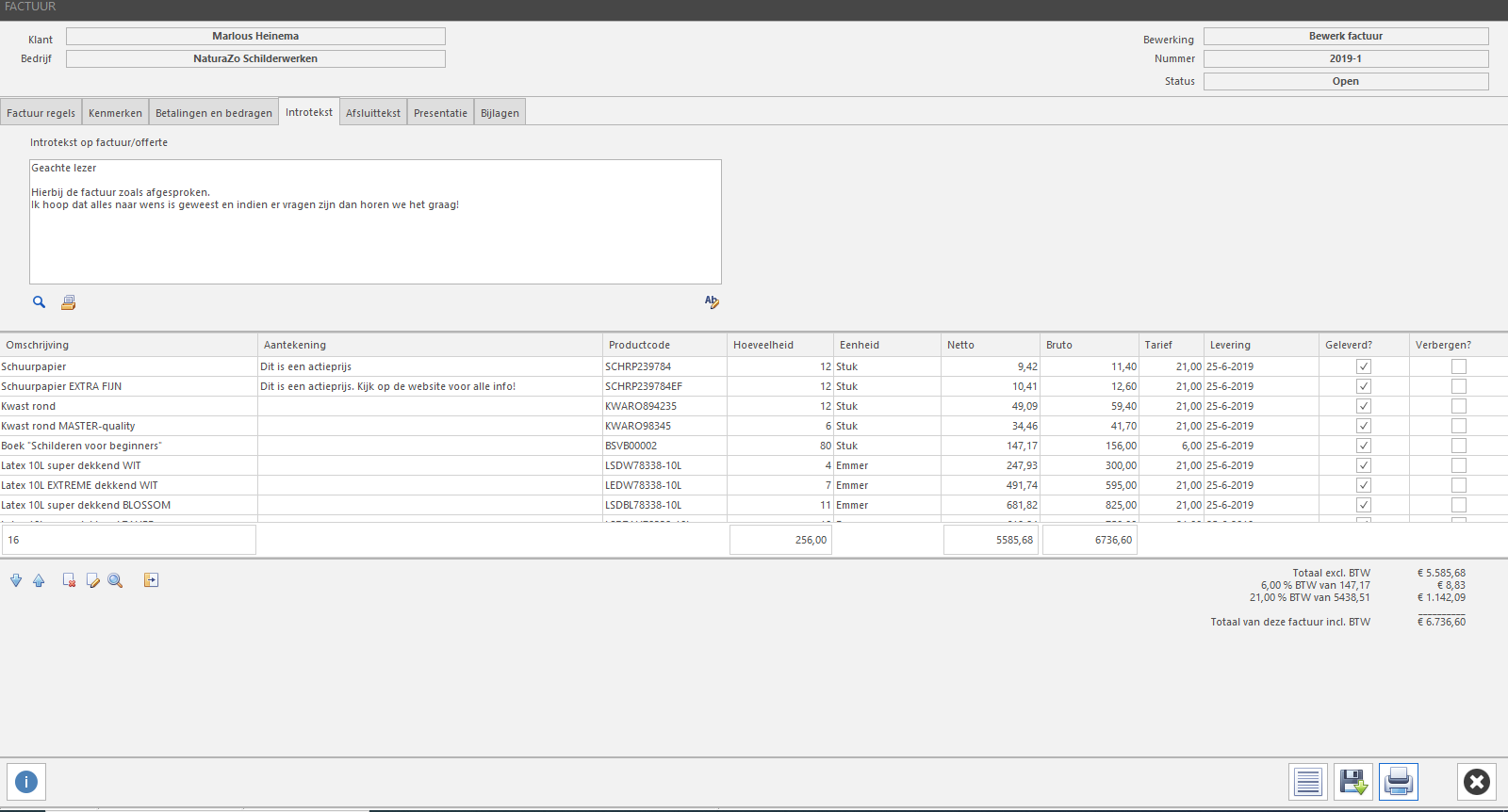
With PERIFACT, you can easily create a introductory text add to your invoices. This is a handy way to welcome your customer, include important information or put the invoice in context.
How to add an intro text:
- Open the invoice you want to edit.
- Go to the "Introtext" tab.
- Type your desired text in the text box.
- You can use the text processing options to format the text, such as fat, italic, underline, font size and alignment.
TAB - CLOSING TEXT
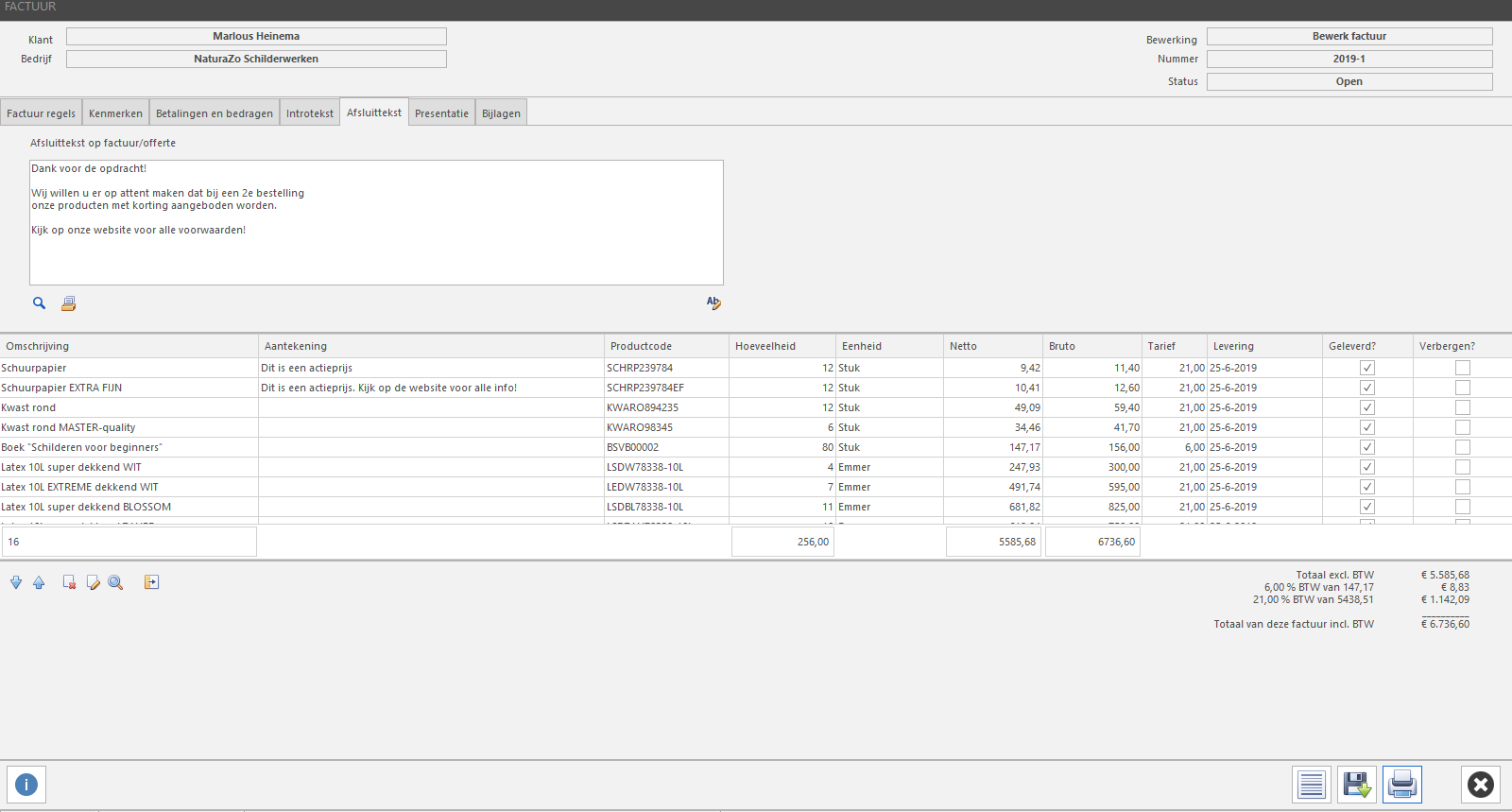
Every invoice can be provided with a closing intro text. For each text block in PERIFACT, you can use the [AB button] to start the extensive built-in text editor.
TAB - PRESENTATION
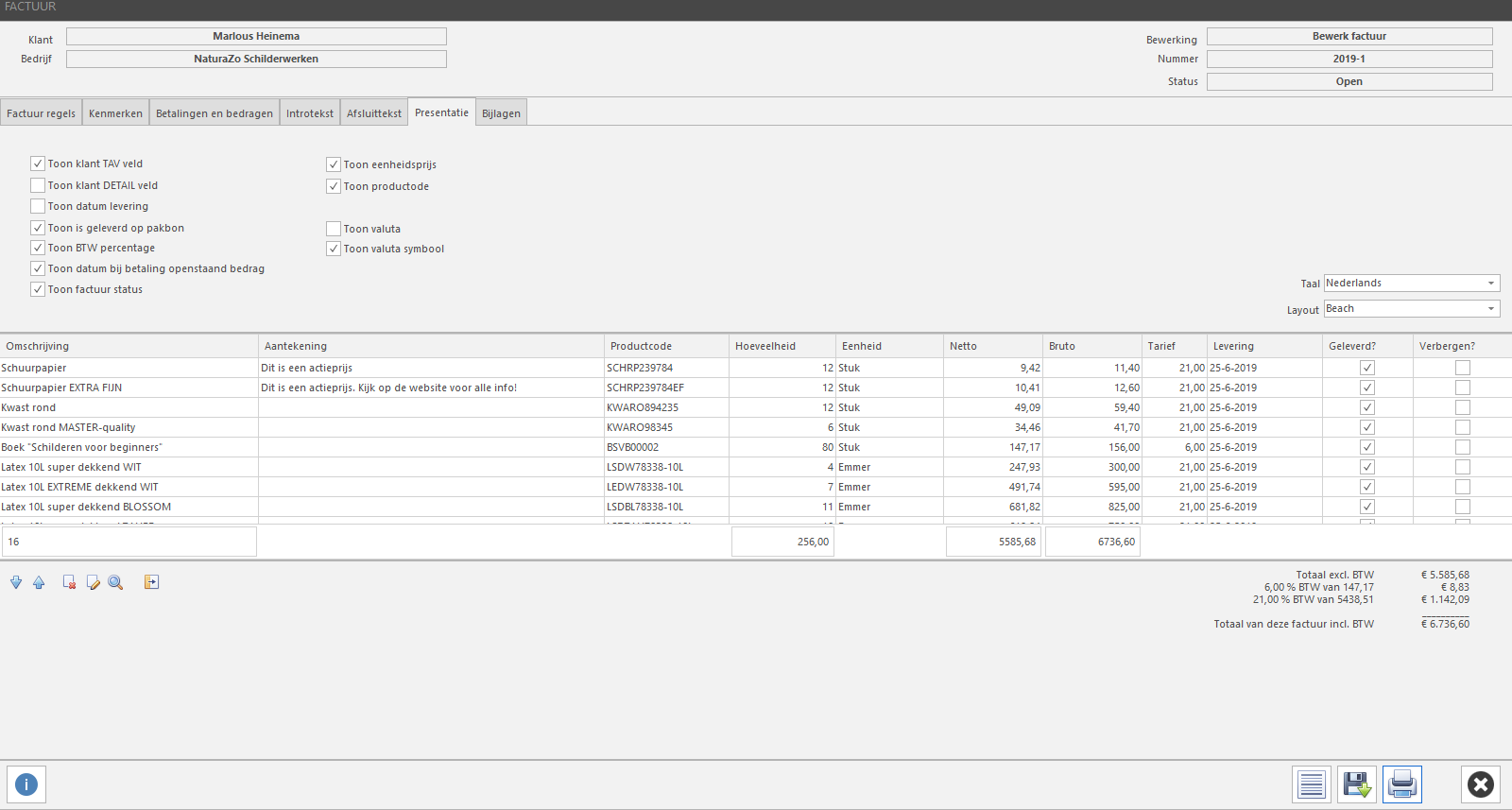
Want to make changes how your invoice should look? Then this is the right place. You can even switch the language so that the invoice appears in a completely different language (texts can be adjusted in menu SETTINGS - BUSINESS TEXT or SETTINGS - LABEL TEXT.
Do you want a different layout temporarily? No problem then make your choice here.
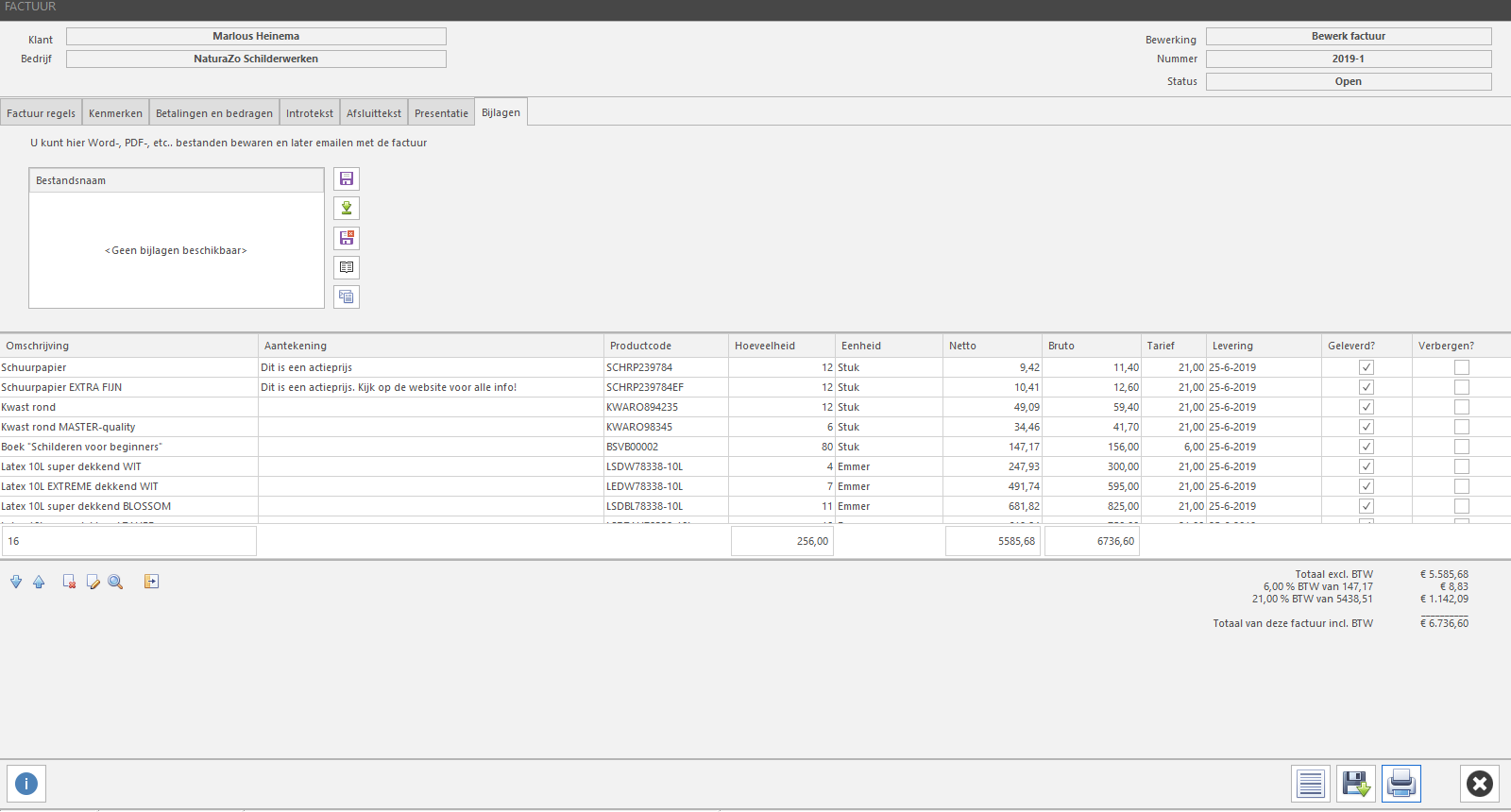
TAB - ATTACHMENTS
If you find it important to save documents that go with the invoice then this is the place to save them. The maximum file size is 10Mb.